-
Shop
- Advanced Technologies
- AI Skills for Creators & Freelancers
- AI Client Management
- AI Ethics
- AI Mindset
- AI Tools & Prompts
- AI Writing & Content Creation
- Audio, Voice & Music
- Design & Visual Creation
- Email, Messaging & Communication
- Freelancing & Business
- Marketing, Ads & Conversion
- Productivity, Workflow & Automation
- SEO & Search Optimization
- Social Media Content & Growth
- Strategy, Planning & Analytics
- Video Creation & Editing
- AI Skills Mastery 2026 Collection
- Bathroom
- Best-Sellers
- Car Accessories
- Confidence
- Dating & Social Skills
- Digital Resources
- Easter Products
- Education & Learning
- Family & Parenting
- Fashion
- Fashion Accessories
- Furniture
- Gadgets
- Health & Beauty
- Health & Wellness
- Home & Garden
- Home Electronics
- Home Supplies
- Jewelry
- Kids & Babies
- Kitchen
- Lighting
- Patio, Lawn & Garden
- Personal Growth
- Pet Care
- Pet Supplies
- Pets
- Shoes
- Smart Home Living Guides
- Sport & Outdoors
- Stress Relief & Relaxation
- Super Deals
- TikTok Growth & Monetization Mastery
- Travel
- Travel & Adventure
- Wealth
- Wellness
USB & 3.5mm Wired Headset w/ Mic for Clear Calls
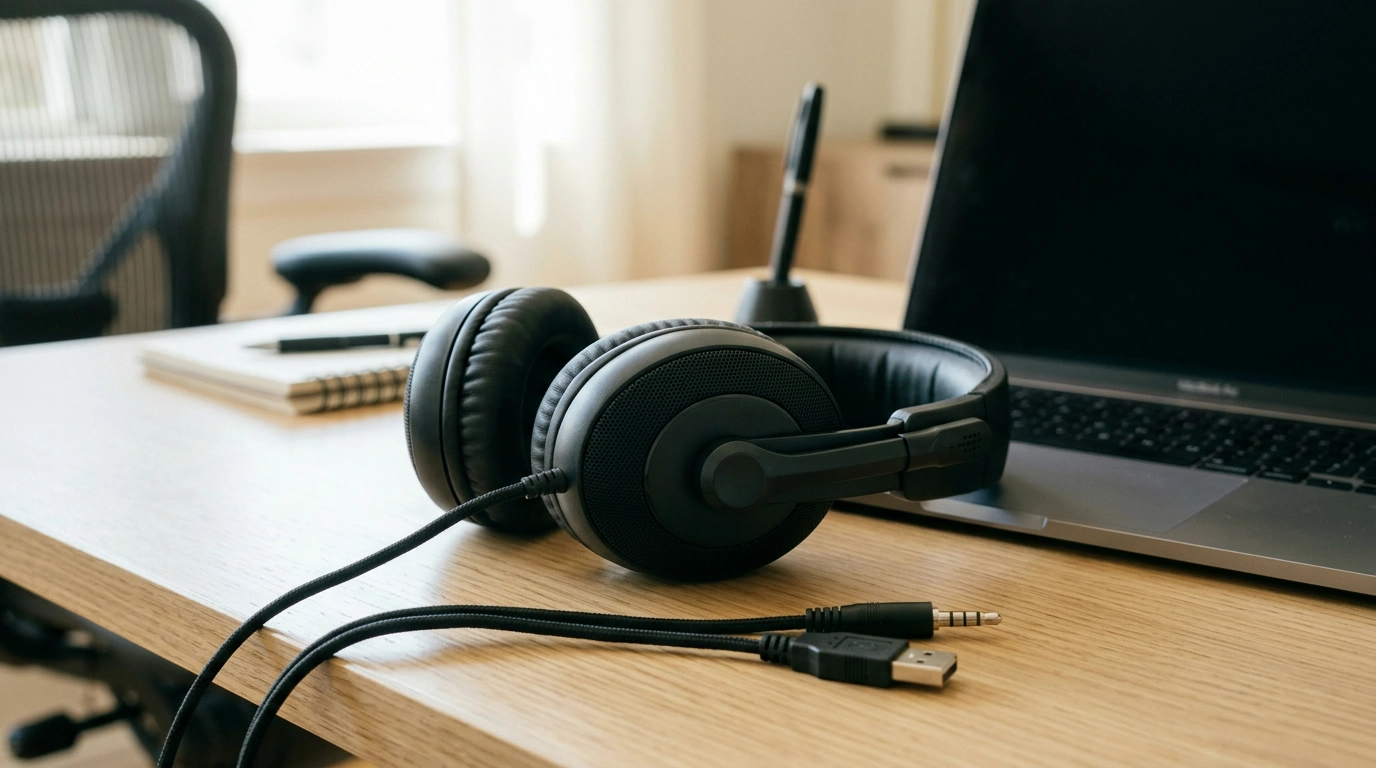
USB & 3.5mm Wired Headset with Microphone: Simple Plug-In Audio for Calls and Everyday Listening
A wired headset that offers both USB and 3.5mm connections keeps setup simple across laptops, desktops, and many mobile-friendly devices. This guide breaks down what a USB & 3.5mm wired headset with microphone is suited for, what to look for when using each connection type, and how to get clear audio for calls, classes, and daily listening—without worrying about charging, pairing, or wireless dropouts.
Why a dual-connection wired headset makes life easier
Having two connection options makes a single headset easier to use across different spaces and devices—especially when you don’t control the hardware you’ll be plugged into.
- USB can be the quickest route to consistent call performance on computers. On many laptops and desktops, USB audio shows up as its own device, which helps avoid the “wrong mic” problem.
- 3.5mm is still useful in more places than you might expect. Older PCs, certain monitors, and some controllers still rely on analog audio ports.
- Wired stability helps during long sessions. No battery management, fewer surprise disconnects, and less troubleshooting mid-meeting.
- Great for shared environments. In home offices, dorms, classrooms, or family setups, devices change often—dual connection options reduce friction.
Quick product snapshot
- Product: USB & 3.5mm Wired Headset with Microphone
- Price: $16.67 (USD)
- Availability: In stock (listed stock count: 10)
- Connection options: USB + 3.5mm
- Best fit for: calls, remote learning, basic PC audio, straightforward plug-in use
USB vs 3.5mm: what changes when you switch
Both connections can sound good, but the “path” the audio takes is different—and that changes how your computer recognizes the headset and microphone.
- USB is digital. It typically appears as a separate audio device in your system settings. Selecting it for both input and output can prevent your computer from defaulting to the built-in mic.
- 3.5mm is analog. Performance depends on the quality and configuration of the device’s audio port(s). Some desktops use separate jacks for headphone out and mic in.
- Combo-jack compatibility varies. If a device has a single combined headset jack (TRRS), a standard 3.5mm plug may or may not carry microphone audio depending on wiring and the port type.
- Troubleshooting usually starts in settings. Check selected input/output devices and app permissions, particularly on Windows and macOS.
Connection options at a glance
| Connection | Typical devices | What to check first | Most common issue |
|---|---|---|---|
| USB | Windows PCs, Macs, many laptops and docks | Select the headset for both input and output | Computer uses the built-in mic instead |
| 3.5mm | PC audio jacks, some monitors, certain controllers | Port type (single combo vs separate mic/headphone) | Mic not detected on a non-combo port |
Microphone clarity: how to get better call quality
Even a basic wired headset can deliver noticeably cleaner calls with a few small adjustments.
- Mic placement matters. Aim the mic slightly to the side of your mouth rather than directly in front to reduce breath noise and plosives.
- Run the built-in audio test in your meeting app. Confirm the correct microphone is selected before an important call.
- Adjust input gain for a natural level. Lower it if your voice sounds harsh or distorted; raise it if you’re consistently too quiet.
- Cut noise at the source when possible. Move away from fans, close a window, or reposition your laptop so the mic isn’t fighting constant background sound.
If you run into persistent audio glitches on a PC, the official OS troubleshooting guides can help pinpoint device-selection and driver issues (see Microsoft Support and Apple Support).
Sound expectations for everyday listening
A practical wired headset is often tuned for speech intelligibility, which is ideal for meetings, lectures, training videos, and customer calls. For music and streaming, perceived fullness depends on the device output and the fit—if the headset sits securely and seals well, bass response typically feels stronger and outside noise is less distracting.
If audio suddenly sounds thin or quiet, check whether your operating system is applying call-focused volume changes (for example, communications settings that automatically reduce other sounds during calls). Keeping listening levels moderate is also a smart long-term habit; safe-listening guidance is available from the World Health Organization.
Comfort and fit basics that matter on long sessions
Setup checklist for Windows, macOS, and common apps
Who this headset is a good match for
Care tips to extend lifespan
Product link and current availability
For current price, photos, and live stock status, visit the product page: USB & 3.5mm Wired Headset with Microphone. If the headset will be used across multiple devices, confirm which connection (USB or 3.5mm) will be your primary option and whether adapters are needed for older desktops.
- Universal Car Steering Wheel Phone Mount for Safe Navigation
- Triple-Sided Ultra-Fine Soft Bristle Toothbrush for Enhanced Oral Health
FAQ
Why does my computer keep using the built-in microphone instead of the headset mic?
Open your system sound settings and set the headset as the active input device, then confirm the same choice inside your calling app. Also check microphone privacy permissions, and try unplugging/replugging the USB connection so the headset re-registers.
Will the microphone work over the 3.5mm connection?
It depends on the port type: a single combo headset jack (TRRS) is more likely to carry mic audio, while desktops with separate mic/headphone jacks may require an adapter. The quickest way to confirm is to test the input device in your sound settings and record a short sample.
Is USB or 3.5mm better for calls?
USB is often more consistent on computers because it appears as a dedicated audio device and makes selecting the correct mic and speakers straightforward. 3.5mm can work well too, but it’s more dependent on the device’s analog port configuration and audio settings.
Recommended for you
Was this article helpful?
Yes
No









Leave a comment