-
Shop
- Advanced Technologies
- AI Skills for Creators & Freelancers
- AI Client Management
- AI Ethics
- AI Mindset
- AI Tools & Prompts
- AI Writing & Content Creation
- Audio, Voice & Music
- Design & Visual Creation
- Email, Messaging & Communication
- Freelancing & Business
- Marketing, Ads & Conversion
- Productivity, Workflow & Automation
- SEO & Search Optimization
- Social Media Content & Growth
- Strategy, Planning & Analytics
- Video Creation & Editing
- AI Skills Mastery 2026 Collection
- Bathroom
- Best-Sellers
- Car Accessories
- Confidence
- Dating & Social Skills
- Digital Resources
- Easter Products
- Education & Learning
- Family & Parenting
- Fashion
- Fashion Accessories
- Furniture
- Gadgets
- Health & Beauty
- Health & Wellness
- Home & Garden
- Home Electronics
- Home Supplies
- Jewelry
- Kids & Babies
- Kitchen
- Lighting
- Patio, Lawn & Garden
- Personal Growth
- Pet Care
- Pet Supplies
- Pets
- Shoes
- Smart Home Living Guides
- Sport & Outdoors
- Stress Relief & Relaxation
- Super Deals
- TikTok Growth & Monetization Mastery
- Travel
- Travel & Adventure
- Wealth
- Wellness
15-Key LCD Macro Controller: Stream & Edit Faster
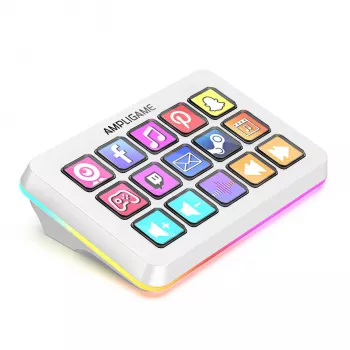
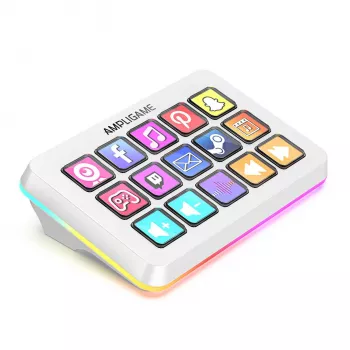
15-Key LCD Macro Stream Controller with RGB Lighting for Live Streaming & Editing
A 15-key LCD macro controller can streamline live production by putting scene switches, audio controls, and editing shortcuts onto labeled buttons you can tap without hunting through menus. With per-key displays and customizable RGB lighting, it helps keep workflows fast and consistent across streaming, recording, and post-production. This guide breaks down practical ways to set it up, map actions, and keep your workflow reliable. For more guidance, see Macro Keypad Stream Controller Deck with 18 Programmable LCD ….
What a 15-key LCD macro controller does in a streaming/editing setup
When you’re live, every extra click is a chance to miss a moment—or hit the wrong control. A 15-key LCD macro controller turns repeat actions into single presses, so your hands can stay focused on the show or the timeline. For further reading, see Stream Controller Deck Macro Keypad – Customizable LCD Keys ….
- Replaces multi-step mouse/keyboard actions with single-button commands for repetitive tasks.
- Uses labeled LCD keys to reduce mistakes during live moments (for example, switching to the wrong scene).
- Adds a consistent control surface for scenes, sources, audio, chat moderation actions, and editing macros.
- RGB lighting can indicate modes (streaming vs. recording vs. editing) or status (muted, live, armed).
For streamers using OBS-style workflows, macros and hotkeys can be paired with a clear visual layout for quick decisions under pressure (see OBS Studio Documentation for hotkey and scene control concepts).
At-a-glance features and how they translate to real workflow gains
The sweet spot of a 15-key layout is that it’s big enough for essential controls but compact enough to sit beside a keyboard and mouse without rearranging your entire desk. Look for profiles, clear per-key labeling, and lighting that communicates status at a glance.
- 15 programmable LCD keys: assign actions, folders/pages, and app-specific profiles for different tools.
- Per-key icons/labels: quick recognition for critical controls like mic mute, scene change, and record toggle.
- RGB lighting: use color cues for modes, priorities, or active states to reduce cognitive load.
- Compact desk footprint: fits alongside a keyboard/mouse without reworking the entire workspace.
Common mappings for LCD keys in streaming and editing
| Key Type | Action | Why it helps | Example mapping |
|---|---|---|---|
| Live control | Switch scenes/sources | Faster transitions with fewer errors | Scene: Camera / Scene: Gameplay / Source: Browser |
| Audio | Mute/Deafen/Level preset | Prevents hot-mic moments and fixes audio fast | Mic Mute / Desktop -5 dB / Music Ducking |
| Production | Start/Stop streaming/recording | Keeps hands on the workflow during go-live | Start Stream / Start Record / Marker |
| Editing | Timeline and tool shortcuts | Speeds repetitive cuts and trims | Ripple Delete / Add Marker / Blade Tool |
| Utility | Open apps and folders | Rapid context switching | Open OBS / Open Project Folder / Open Notes |
Setup essentials: placement, profiles, and labeling strategy
Small setup choices make a big difference in speed and accuracy—especially when you’re switching scenes while talking, monitoring audio, and watching chat.
- Placement: keep it in a natural reach zone; avoid placing it behind the keyboard where it forces wrist rotation.
- Profiles by task: create separate pages for live streaming, recording, and editing to reduce accidental presses.
- Labeling: use consistent iconography and naming (for example, all audio keys blue, all scene keys green).
- Safety keys: group high-impact actions (End Stream/Stop Record) away from rapid-tap controls; consider confirm-style macros if supported.
If you’re building a streamlined desk workflow around a dedicated controller, the 15-Key LCD Macro Stream Controller with RGB Lighting for Live Streaming & Editing is a practical starting point for organizing your core actions into always-visible buttons.
Live streaming workflows to map first
Start with the actions that protect you from mistakes and keep the show moving. Once those are stable, layer in convenience keys and “nice-to-haves.”
- Scene switching: map the top row to core scenes (Starting Soon, Live, BRB, Ending) for predictable navigation.
- Source toggles: add keys for camera on/off, overlays, alerts, and sponsor lower-thirds when timing matters.
- Chat/engagement actions: quick toggles for chat visibility, slow mode, or pinned message scripts via hotkeys or app integrations.
- Stream markers: map a marker button for highlight moments to simplify clip creation later.
- Fail-safe actions: a dedicated “mute all” or “panic” key that swaps to a safe scene and mutes mic/music.
For platform-side best practices on keeping broadcasts smooth and engaging, Twitch’s learning resources can help you shape a reliable routine (see Twitch Creator Camp).
Editing workflows that benefit most from macro keys
Using RGB lighting as a status system (not just decoration)
Reliability tips and quick troubleshooting
For creators who like tidy, travel-ready setups, small add-ons can help keep your kit consistent between locations—like a compact Universal Car Steering Wheel Phone Mount for Safe Navigation for hands-free directions on the way to a shoot, or a lightweight hygiene essential such as the Triple-Sided Ultra-Fine Soft Bristle Toothbrush for Enhanced Oral Health in your backpack.
FAQ
Can the LCD keys show custom icons or labels for each action?
Yes. Per-key LCD displays are designed to show custom icons and/or text labels, which makes it easier to recognize scenes, audio toggles, and editing tools quickly and avoid misclicks.
What should be mapped first for a beginner streamer?
Start with mic mute, scene switching (Starting/Live/BRB/Ending), and start/stop stream or recording. After those essentials feel automatic, add overlays, audio level presets, and marker buttons.
How can RGB lighting be used to prevent accidental presses during a live session?
Use color-coding by mode (live vs. recording vs. editing) and by state (muted vs. unmuted) so mistakes are visually obvious. Keep high-impact keys away from frequent controls and give emergency actions a distinct, consistent color.
Recommended for you

Was this article helpful?
Yes
No








Leave a comment