-
Shop
- Advanced Technologies
- AI Skills for Creators & Freelancers
- AI Client Management
- AI Ethics
- AI Mindset
- AI Tools & Prompts
- AI Writing & Content Creation
- Audio, Voice & Music
- Design & Visual Creation
- Email, Messaging & Communication
- Freelancing & Business
- Marketing, Ads & Conversion
- Productivity, Workflow & Automation
- SEO & Search Optimization
- Social Media Content & Growth
- Strategy, Planning & Analytics
- Video Creation & Editing
- AI Skills Mastery 2026 Collection
- Bathroom
- Best-Sellers
- Car Accessories
- Confidence
- Dating & Social Skills
- Digital Resources
- Easter Products
- Education & Learning
- Family & Parenting
- Fashion
- Fashion Accessories
- Furniture
- Gadgets
- Health & Beauty
- Health & Wellness
- Home & Garden
- Home Electronics
- Home Supplies
- Jewelry
- Kids & Babies
- Kitchen
- Lighting
- Patio, Lawn & Garden
- Personal Growth
- Pet Care
- Pet Supplies
- Pets
- Shoes
- Smart Home Living Guides
- Sport & Outdoors
- Stress Relief & Relaxation
- Super Deals
- TikTok Growth & Monetization Mastery
- Travel
- Travel & Adventure
- Wealth
- Wellness
USB/XLR Dynamic Gaming Mic: RGB, Mute, Noise Control
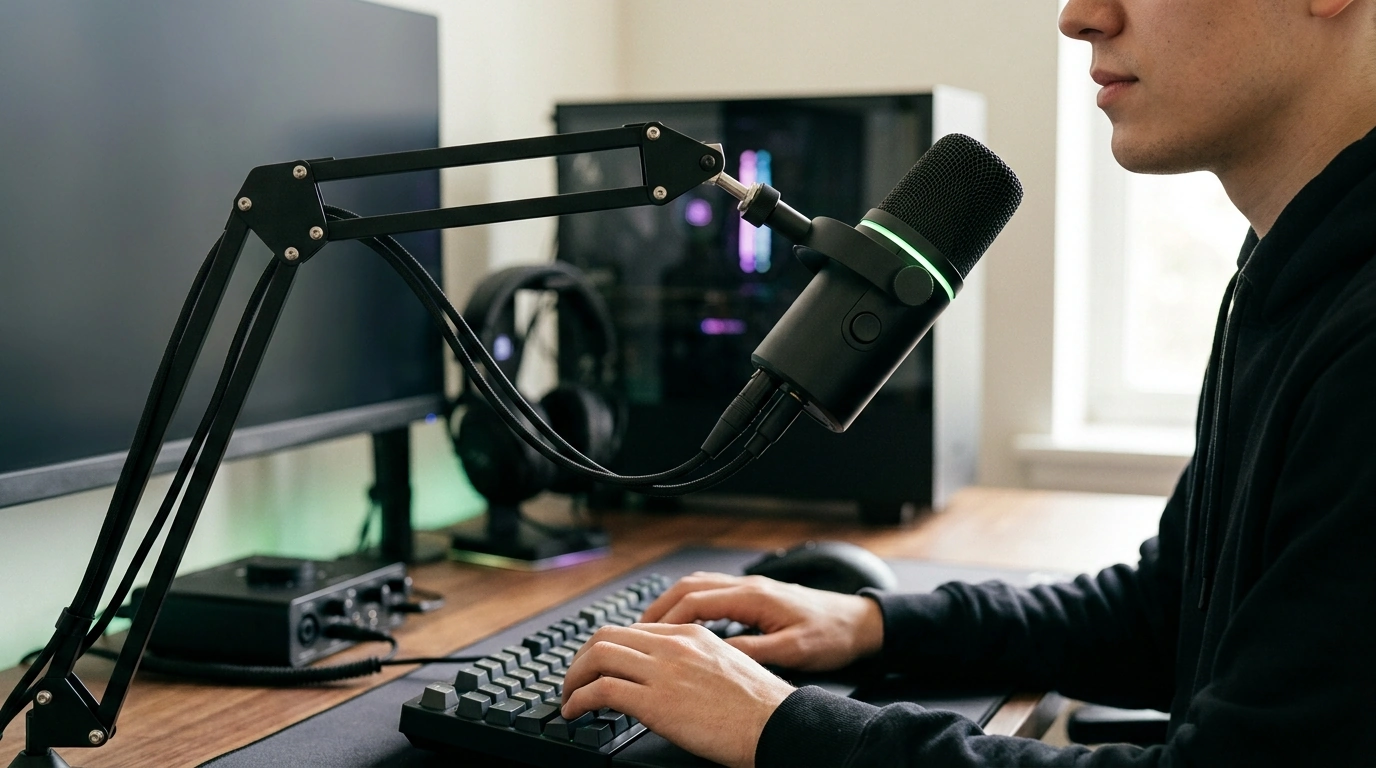
Dynamic USB/XLR Gaming Microphone with RGB, Mute, and Noise Reduction
A dynamic mic built for gaming, streaming, and voice chat can make speech clearer while keeping keyboard clicks and room noise under control. This model combines USB and XLR connectivity, a quick-access mute, RGB lighting, and noise-reduction features to fit both simple plug-and-play setups and more advanced audio chains. For more guidance, see MAONO XLR/USB Dynamic Microphone with RGB Software Control ….
What This Microphone Is Designed to Do
- Prioritize spoken voice intelligibility for gaming comms, streaming, podcasts, and calls.
- Use a dynamic capsule to help reduce sensitivity to distant room sounds compared with many condensers.
- Offer flexible connectivity: USB for easy use and XLR for mixers/interfaces.
- Add quality-of-life controls like quick mute and visible status feedback (RGB).
If your current mic picks up every keypress and fan ramp, a dynamic design can be a practical step toward clearer comms—especially when you stay close to the grille and keep input gain under control. For further reading, see Get the Best USB/XLR Noise Cancelling Mic for Streaming at Maono.
Sound Character and Noise Control
Dynamic microphones typically reward close-range speaking. For most voices, the “sweet spot” is about 2–6 inches from the grille, with a stable position so your tone doesn’t drift from thin to boomy mid-sentence. If you want a deeper, broadcast-style sound, moving slightly closer can increase low-end presence; if it gets too bassy, back off an inch or two.
Noise reduction works best when it’s supporting good mic technique rather than replacing it. Keep the mic slightly off-axis (aimed at the corner of your mouth instead of directly in front) to soften plosives, and avoid over-cranking the gain just to make distant speech loud. A helpful overview of technique fundamentals is available from Shure’s microphone technique resources.
- Expect improved rejection of background noise sources like PC fans and mechanical keyboards when the mic is positioned correctly.
- For plosives and sibilance: speak slightly off-axis, add a windscreen/pop filter, and avoid heavy high-frequency boosts in EQ.
USB vs XLR: Choosing the Right Connection for Your Setup
USB for quick, reliable plug-and-play
USB is ideal when you want the simplest path: one cable for power and audio, minimal gear, and fast setup on a PC or laptop. This is a strong fit for dorm rooms, travel rigs, or anyone who wants a straightforward “select the mic in settings and go” workflow.
XLR for a long-term upgrade path
XLR shines when you want more control over gain staging, routing, and processing. Pairing the mic with an audio interface or mixer can deliver more hands-on control and makes it easier to expand into multi-source setups.
- If using XLR, confirm your interface provides enough clean gain for a dynamic microphone; if it feels quiet at reasonable settings, an inline preamp booster may help.
- Keep USB and XLR use-cases separate: use USB for portability, and reserve XLR for a desk studio or more complex chain.
Controls, RGB Lighting, and Mute Behavior
A reachable mute button is more than a convenience—it helps keep comms clean during coughs, snack breaks, or when you need to talk off-stream. The best mute workflow is consistent: mute before moving the boom arm, adjusting the mic, or typing aggressively, then unmute only when you’re ready to speak clearly.
RGB lighting can be more practical than it sounds. A bright status indicator helps you confirm “live vs muted” at a glance, which is especially useful on-camera, in a dim room, or when you’re focused on gameplay. If the mic includes monitoring and volume controls, set them so you can hear yourself comfortably; that reduces the tendency to shout or drift too far away.
Practical Setup for Clear Voice in Games and Streams
Placement
Gain and level discipline
Software tools (light touch works best)
If you stream, it helps to understand how filters stack and interact in your broadcast app. The OBS Studio documentation is a solid starting point for setting up audio filters and monitoring.
Room basics and cables
Quick Spec Snapshot
At-a-Glance Checklist
| Item | What to verify | Why it matters |
|---|---|---|
| Connectivity | USB and/or XLR ports you’ll use | Determines plug-and-play vs interface/mixer workflow |
| Mute control | On-mic mute and clear status indication | Fast silence control during gameplay and calls |
| Noise handling | Close-mic performance and noise-reduction options | Helps keep background distractions down |
| Mounting | Desk stand/boom arm compatibility | Stable placement improves consistency and clarity |
| Monitoring (if available) | Headphone monitoring and level control | Reduces latency confusion and improves mic technique |
Common Issues and Fast Fixes
Who It Fits Best
In-Stock Picks
- Dynamic USB/XLR Gaming Microphone with RGB, Mute, and Noise Reduction
- Universal Car Steering Wheel Phone Mount for Safe Navigation
FAQ
Does a dynamic microphone reduce background noise automatically?
Not automatically. Dynamic mics are often less sensitive than condensers and can reject distant sound better, but placement, gain settings, and tools like a noise gate or noise reduction still make the biggest difference.
When should USB be used instead of XLR?
Use USB when you want the fastest setup with minimal gear and reliable portability. Choose XLR when you’re using an interface or mixer for more control, cleaner gain staging, and easier future upgrades.
What is the best mic distance for clear gaming voice?
About 2–6 inches from the grille is a strong starting point. Stay slightly off-axis, keep the position consistent, and set gain so normal speech is strong without clipping on louder moments.
Recommended for you
Was this article helpful?
Yes
No









Leave a comment