-
Shop
- Advanced Technologies
- AI Skills for Creators & Freelancers
- AI Client Management
- AI Ethics
- AI Mindset
- AI Tools & Prompts
- AI Writing & Content Creation
- Audio, Voice & Music
- Design & Visual Creation
- Email, Messaging & Communication
- Freelancing & Business
- Marketing, Ads & Conversion
- Productivity, Workflow & Automation
- SEO & Search Optimization
- Social Media Content & Growth
- Strategy, Planning & Analytics
- Video Creation & Editing
- AI Skills Mastery 2026 Collection
- Bathroom
- Best-Sellers
- Car Accessories
- Confidence
- Dating & Social Skills
- Digital Resources
- Easter Products
- Education & Learning
- Family & Parenting
- Fashion
- Fashion Accessories
- Furniture
- Gadgets
- Health & Beauty
- Health & Wellness
- Home & Garden
- Home Electronics
- Home Supplies
- Jewelry
- Kids & Babies
- Kitchen
- Lighting
- Patio, Lawn & Garden
- Personal Growth
- Pet Care
- Pet Supplies
- Pets
- Shoes
- Smart Home Living Guides
- Sport & Outdoors
- Stress Relief & Relaxation
- Super Deals
- TikTok Growth & Monetization Mastery
- Travel
- Travel & Adventure
- Wealth
- Wellness
Wireless RGB USB Mic + Boom Arm for Clear Chat
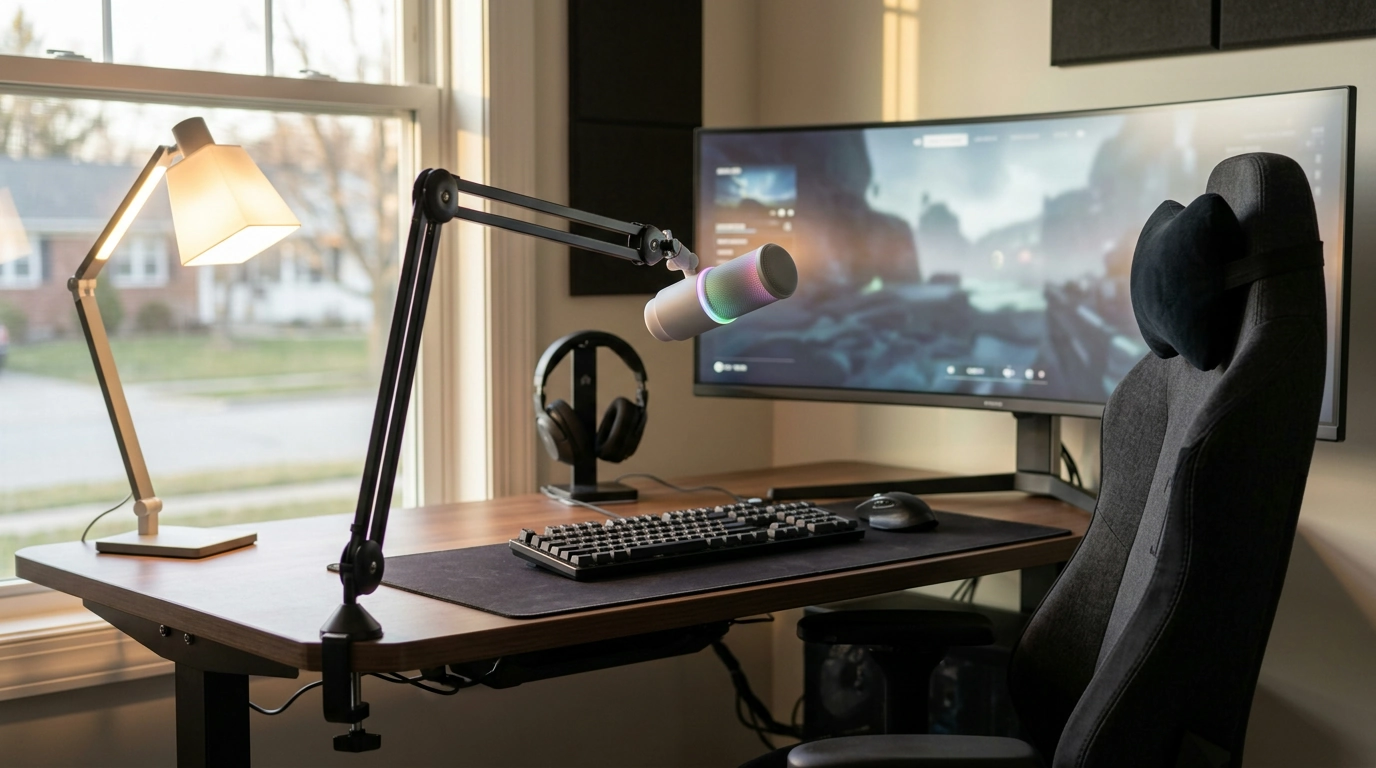
Wireless RGB USB Gaming Microphone with Noise Cancellation & Boom Arm
Clear voice chat and clean streaming audio depend on a mic that can stay close to the mouth, reject background noise, and fit comfortably into a desk setup. This wireless RGB USB gaming microphone pairs noise cancellation with an adjustable boom arm, aiming for crisp speech in games, Discord calls, and casual content creation—without turning the desk into a cable trap. For more guidance, see Best Gaming Microphones 2026 – Tom’s Hardware.
What This Microphone Is Built For
- Gaming voice chat where teammates need consistent volume and clarity
- Streaming and short-form content where voice needs to sit above game audio
- Study/work calls that benefit from a closer mic position and reduced room noise
- Small desks that need an arm-mounted mic to free space for keyboard and mouse
Compared to a desktop stand mic that sits farther away, an arm-mounted mic helps keep a stable working distance—one of the biggest factors behind “broadcast-style” presence. For general placement concepts, Shure’s overview of microphone technique is a solid reference for distance and angle fundamentals: https://www.shure.com/en-US/performance-production/louder/microphone-technique. For further reading, see Best microphone for gaming in 2026: from streaming to podcast mics ….
Key Features That Affect Sound and Comfort
- Wireless operation for fewer cables on the desk and easier repositioning
- USB connectivity for simple setup on most computers without an audio interface
- Noise cancellation designed to reduce keyboard clicks, fan noise, and room ambience
- RGB lighting for a gaming-style look and better visibility in low light
- Boom arm support to keep the capsule close to the mouth for stronger, fuller speech
Feature-to-Benefit Snapshot
| Feature | Why it matters | Best for |
|---|---|---|
| Wireless connection | Cuts clutter and makes mic placement easier | Small desks, frequent repositioning |
| USB plug-and-play | Fast setup without extra hardware | PC gamers, students, remote calls |
| Noise cancellation | Less background noise in voice chat/streams | Shared rooms, mechanical keyboards |
| Boom arm included | Stable mic positioning at mouth level | Streaming, long sessions |
| RGB lighting | Style plus quick visual feedback in darker rooms | Gaming setups, night sessions |
Wireless + USB: What to Expect Day-to-Day
- Ideal placement is typically 6–10 inches from the mouth; boom arms make that distance easy to maintain
- Wireless helps reduce cable tug and desk vibration transfer compared to a desktop stand
- USB microphones usually show up as an input device in system sound settings; selecting the correct input is the main step
- For best results, keep the receiver/connection stable and avoid placing the mic behind a monitor or inside a tight shelf where signals can be blocked
Once connected, most apps (Discord, Zoom, game chat) will still need the microphone selected as the active input. If the computer doesn’t detect the mic or levels look wrong, Windows troubleshooting steps like checking permissions, input device selection, and driver behavior can help: https://support.microsoft.com/en-us/windows/fix-microphone-problems.
Setting Up for Clean Audio in Minutes
- Mount the boom arm so it can swing in and out without bumping the monitor or speakers
- Position the mic slightly off-axis (angled a bit to the side) to reduce plosives and harsh breath noise
- Set input gain so normal speech peaks comfortably without clipping; avoid relying on “boost” settings that raise noise floor
- Use push-to-talk or a noise gate in chat apps when playing in a loud room
- Keep keyboard and mouse slightly farther from the mic side; even good cancellation works best when the noise source is not directly under the capsule
A practical routine is: set the arm height first, then set your speaking distance, then adjust gain last. If you change distance later (lean back, stand up, move the arm), revisit gain—good gain staging is what keeps a voice consistent across matches and meetings.
Noise Cancellation: Practical Tips for Better Results
- Noise cancellation is most effective on steady sounds (fans, AC) and less perfect on sharp clicks; mic distance and angle still matter
- Lower gain and closer placement often beats higher gain and heavy processing
- Soft furnishings in the room (curtains, rugs) reduce reverb that no cancellation can fully remove
- If teammates hear “pumping” artifacts, reduce app-level suppression and rely more on good placement
Think of cancellation as a helper, not a substitute for fundamentals. When the mic is close to the mouth, your voice is naturally louder at the capsule, so the system can keep gain lower—meaning less room sound, fewer keystrokes, and fewer “hollow” artifacts.
Boom Arm Fit and Desk Compatibility
Who This Microphone Is a Good Match For
At-a-Glance Product Details
- Product: Wireless RGB USB Gaming Microphone with Noise Cancellation & Boom Arm
- Price: $59.51 (USD)
- Availability: In stock
- A practical choice for voice-focused use cases: chat, streaming, meetings, and study sessions
More In-Stock Picks
- Universal Car Steering Wheel Phone Mount for Safe Navigation (in stock)
- Triple-Sided Ultra-Fine Soft Bristle Toothbrush for Enhanced Oral Health (in stock)
FAQ
Will a wireless USB microphone work on both PC and laptop?
In most cases, yes—USB microphones are designed to work with both desktops and laptops. The main step is selecting the microphone as the input device in your system settings and in the app you’re using, and allowing any required microphone permissions.
How far should the microphone be from the mouth on a boom arm?
A good starting range is about 6–10 inches, with the mic angled slightly off-axis to reduce plosives. Closer placement usually lets you use lower gain, which helps keep background noise down.
Does noise cancellation remove keyboard and mouse sounds completely?
No—noise cancellation can reduce steady background sounds and may lessen clicks, but it rarely removes sharp keyboard or mouse sounds entirely. Better results come from close mic placement, lower gain, and keeping the keyboard a bit farther from the mic.
Recommended for you
Was this article helpful?
Yes
No









Leave a comment