-
Shop
- Advanced Technologies
- AI Skills for Creators & Freelancers
- AI Client Management
- AI Ethics
- AI Mindset
- AI Tools & Prompts
- AI Writing & Content Creation
- Audio, Voice & Music
- Design & Visual Creation
- Email, Messaging & Communication
- Freelancing & Business
- Marketing, Ads & Conversion
- Productivity, Workflow & Automation
- SEO & Search Optimization
- Social Media Content & Growth
- Strategy, Planning & Analytics
- Video Creation & Editing
- AI Skills Mastery 2026 Collection
- Bathroom
- Best-Sellers
- Car Accessories
- Confidence
- Dating & Social Skills
- Digital Resources
- Easter Products
- Education & Learning
- Family & Parenting
- Fashion
- Fashion Accessories
- Furniture
- Gadgets
- Health & Beauty
- Health & Wellness
- Home & Garden
- Home Electronics
- Home Supplies
- Jewelry
- Kids & Babies
- Kitchen
- Lighting
- Patio, Lawn & Garden
- Personal Growth
- Pet Care
- Pet Supplies
- Pets
- Shoes
- Smart Home Living Guides
- Sport & Outdoors
- Stress Relief & Relaxation
- Super Deals
- TikTok Growth & Monetization Mastery
- Travel
- Travel & Adventure
- Wealth
- Wellness
Effortless AI Photo Editing: Natural Results, Fast

AI Photo Editing That Feels Effortless: From Everyday Shots to Polished Images
Clean up distractions, fix lighting, enhance portraits, and create stylized looks without getting stuck in layers, masks, and endless sliders. “Magic-feeling” AI editing isn’t about letting software do everything—it’s about getting a strong, believable first pass in seconds, then making a few small human choices that keep the photo looking real. Below is what AI editing actually does well, where it can misfire, and a simple workflow that helps results stay natural and consistent across everyday photos, portraits, and product shots.
What “magic-feeling” AI editing actually does
The best AI photo editors don’t just slap a filter on top of your image. They analyze what’s inside the frame—faces, sky, hair, subject edges, text, and objects—then apply targeted changes that would normally take multiple tools and steps.
- Content-aware adjustments: AI can identify key regions (skin vs. hair vs. background) and treat them differently, so portraits aren’t edited like landscapes and product edges don’t get mushy.
- Fast fixes for common tasks: Background removal, object cleanup, relighting, denoise/sharpen, color grading, and basic retouching become quick, repeatable actions.
- Descriptive edits turned into results: Instead of micro-managing dozens of sliders, you can ask for practical outcomes like “remove glare,” “soften shadows,” “replace background,” or “expand the canvas.”
- Best as a co-pilot: AI is strongest when it handles the heavy lifting, then you do light refinement (edge cleanup, toning down smoothing, restoring natural contrast).
If you care about transparency for edited or generated content—especially for commercial work—Adobe’s overview of Content Credentials is a useful starting point for understanding how provenance can be shared.
Where AI saves the most time (and where it still needs help)
Time savings show up most when the edit is repetitive or technically tedious: removing clutter, balancing uneven lighting, making skin tone more consistent, or rescuing low-light photos that look noisy and flat. But AI can still stumble when a scene is visually ambiguous.
- High-impact wins: clearing distractions, smoothing exposure differences, improving skin tone consistency, and restoring perceived detail from noisy images.
- Most reliable conditions: clear subjects with good separation from the background (clean edges, simple backdrops, strong contrast between subject and environment).
- Common struggle zones: complex hair, transparent objects (glasses, sheer fabric), fine repeating patterns (knitwear, blinds), and crowded scenes.
- Artifact awareness: watch for warped fingers, halo edges, smeared textures, repeated patterns, or shadows that don’t match the light direction.
- Adopt a “zoom-and-scan” habit: check face, hands, edges, and background transitions at 100% before exporting.
| Edit task | AI is great for | Quick quality check |
|---|---|---|
| Background removal | Fast cutouts for portraits/products | Look for halos around hair and soft edges |
| Object removal | Clearing clutter, spots, power lines | Verify textures don’t smear or repeat |
| Relighting | Balancing exposure and shadows | Confirm shadow direction stays believable |
| Portrait retouching | Evening skin tone, reducing blemishes | Avoid plastic skin; keep pores/texture |
| Upscale/sharpen | Recovering perceived detail for web | Watch for crunchy edges and noise amplification |
| Generative expand | Extending backgrounds for crops/ads | Check for odd objects/pattern seams |
A simple workflow that stays natural
Natural-looking AI edits usually come from doing the basics first, then adding AI enhancements in a deliberate order. This keeps you from “fixing” problems that could have been solved with a quick exposure or white balance tweak.
- Start clean: crop/straighten, then correct exposure and white balance before any heavy AI effects.
- Apply AI in layers of intent: (1) cleanup, (2) lighting, (3) color, (4) detail, (5) stylize. Stop as soon as it looks right.
- Use the original as a guardrail: compare before/after often so you don’t drift into an over-processed look.
- Export smart: for web, use sRGB; keep a higher-quality master for future edits. W3C’s guidance on sRGB and color management helps explain why colors can shift across devices if you skip the basics.
Results that feel consistent: styles, presets, and repeatable settings
Common mistakes that make AI edits look fake
For portrait-related AI, it also helps to be aware that automated systems can behave differently across demographics; NIST’s FRVT resources provide broader context on performance differences in face technologies, which is a good reminder to manually review skin tone and facial details carefully.
Skill-building without the Photoshop rabbit hole
A guided path for AI editing that feels intuitive
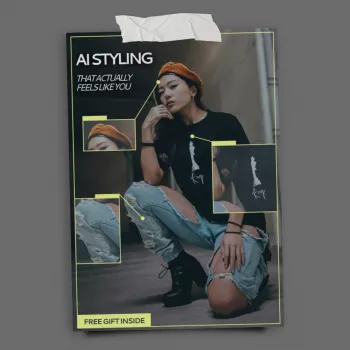
If you want a structured approach—from quick fixes to more Photoshop-like control using AI—AI Photo Editing That Feels Like Magic, Not Photoshop – Master AI for Photo Editing Like Photoshop eBook focuses on repeatable methods and practical examples. It’s designed for creators and small businesses that want polished images without spending hours wrestling with complex tools.
Handy picks for a smoother create-and-edit routine
- AI Photo Editing That Feels Like Magic, Not Photoshop – Master AI for Photo Editing Like Photoshop eBook (digital guide for a consistent, believable workflow)
- Universal Car Steering Wheel Phone Mount for Safe Navigation (useful for hands-free navigation when scouting locations or traveling between shoots)
FAQ
Do AI photo editors replace Photoshop completely?
They can replace Photoshop for many everyday tasks—cleanup, background removal, relighting, and quick retouching—but complex compositing, precise masking, and detailed control still favor traditional editors. AI works best as an accelerator plus a light manual finish.
How can AI edits look natural instead of over-processed?
Keep adjustments subtle, compare to the original often, preserve skin and surface texture, and make sure lighting and shadows remain consistent. A quick checklist: skin texture, clean edges (no halos), believable shadows, and neutral whites without color casts.
What kinds of photos benefit most from AI editing?
Portraits, product photos, real estate/interiors, and low-light images tend to see the biggest improvement with the least effort. Photos with complex hair, transparency, fine patterns, or crowded scenes may need extra manual review.
Recommended for you


Was this article helpful?
Yes
No







Leave a comment