-
Shop
- Advanced Technologies
- AI Skills for Creators & Freelancers
- AI Client Management
- AI Ethics
- AI Mindset
- AI Tools & Prompts
- AI Writing & Content Creation
- Audio, Voice & Music
- Design & Visual Creation
- Email, Messaging & Communication
- Freelancing & Business
- Marketing, Ads & Conversion
- Productivity, Workflow & Automation
- SEO & Search Optimization
- Social Media Content & Growth
- Strategy, Planning & Analytics
- Video Creation & Editing
- AI Skills Mastery 2026 Collection
- Bathroom
- Best-Sellers
- Car Accessories
- Confidence
- Dating & Social Skills
- Digital Resources
- Easter Products
- Education & Learning
- Family & Parenting
- Fashion
- Fashion Accessories
- Furniture
- Gadgets
- Health & Beauty
- Health & Wellness
- Home & Garden
- Home Electronics
- Home Supplies
- Jewelry
- Kids & Babies
- Kitchen
- Lighting
- Patio, Lawn & Garden
- Personal Growth
- Pet Care
- Pet Supplies
- Pets
- Shoes
- Smart Home Living Guides
- Sport & Outdoors
- Stress Relief & Relaxation
- Super Deals
- TikTok Growth & Monetization Mastery
- Travel
- Travel & Adventure
- Wealth
- Wellness
Connect a Smart Aroma Diffuser to WiFi & App Setup
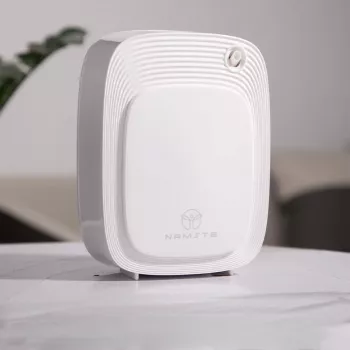
How do you connect a smart aroma oil diffuser to WiFi and pair it with an app?
Getting a smart aroma oil diffuser online usually takes just a few minutes, as long as you start with the right network and put the diffuser into pairing mode. Before you begin, make sure your phone is connected to a 2.4GHz WiFi network (many smart diffusers won’t join 5GHz), and confirm Bluetooth and Location are enabled if the app requests them.
1) Power on and reset the diffuser for pairing
Plug in the diffuser and turn it on. If it’s been connected before, reset the WiFi by holding the designated WiFi/Power/Light button (varies by model) until the indicator light starts blinking. A fast blink often means it’s ready for “EZ” pairing; a slow blink may indicate AP (hotspot) mode.
2) Add the device in the app
Open your diffuser’s companion app (or a supported smart-home app), sign in, then tap Add Device. Choose the diffuser category (often “Small Home Appliances” or “Diffuser/Humidifier”). Enter your 2.4GHz WiFi name and password exactly as shown in your router settings.
3) Complete pairing (EZ mode or AP mode)
If the app uses EZ mode, keep your phone on the same 2.4GHz network and follow the prompts until the device appears online. If it fails, switch to AP mode in the app, connect your phone temporarily to the diffuser’s WiFi hotspot (usually named something like “SmartLife-XXXX”), then return to the app to finalize setup.
4) Name it, test controls, and set schedules
Once connected, rename the diffuser (like “Bedroom Diffuser”), test mist and light controls, and set timers or schedules. If you use voice assistants, link the app to Alexa/Google Home and run device discovery.
For model-specific tips (indicator lights, button sequences, and troubleshooting), see the full guide here: https://ulorin.com/guide-wifi-smart-200ml-aroma-oil-diffuser-fresh-rooms/.
FAQ
Why won’t my diffuser connect to 5GHz WiFi?
Many smart diffusers only support 2.4GHz networks for better range and simpler hardware. Connect your phone to 2.4GHz, then repeat setup using that network name and password.
Recommended for you


Was this article helpful?
Yes
No








Leave a comment