-
Shop
- Advanced Technologies
- AI Skills for Creators & Freelancers
- AI Client Management
- AI Ethics
- AI Mindset
- AI Tools & Prompts
- AI Writing & Content Creation
- Audio, Voice & Music
- Design & Visual Creation
- Email, Messaging & Communication
- Freelancing & Business
- Marketing, Ads & Conversion
- Productivity, Workflow & Automation
- SEO & Search Optimization
- Social Media Content & Growth
- Strategy, Planning & Analytics
- Video Creation & Editing
- AI Skills Mastery 2026 Collection
- Bathroom
- Best-Sellers
- Car Accessories
- Confidence
- Dating & Social Skills
- Digital Resources
- Easter Products
- Education & Learning
- Family & Parenting
- Fashion
- Fashion Accessories
- Furniture
- Gadgets
- Health & Beauty
- Health & Wellness
- Home & Garden
- Home Electronics
- Home Supplies
- Jewelry
- Kids & Babies
- Kitchen
- Lighting
- Patio, Lawn & Garden
- Personal Growth
- Pet Care
- Pet Supplies
- Pets
- Shoes
- Smart Home Living Guides
- Sport & Outdoors
- Stress Relief & Relaxation
- Super Deals
- TikTok Growth & Monetization Mastery
- Travel
- Travel & Adventure
- Wealth
- Wellness
Connect Your Aroma Diffuser to WiFi in 4 Easy Steps
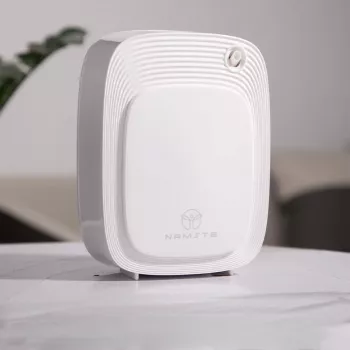
How to connect aroma diffuser to wifi?
Connecting a WiFi aroma diffuser usually takes just a few minutes once you have the right network and the diffuser is in pairing mode. Before you start, confirm you have the diffuser plugged in, your phone is connected to your home WiFi, and your router is broadcasting a 2.4GHz network (many smart diffusers won’t pair on 5GHz).
Step-by-step: Pair your diffuser to WiFi
1) Install the correct app. Most smart diffusers use a companion app (often Tuya Smart or Smart Life). Download the app, create an account, and allow Bluetooth/location permissions if prompted (many apps use them to detect devices).
2) Put the diffuser in pairing mode. Turn the diffuser on, then press and hold the WiFi/power button (varies by model) until the indicator light starts blinking rapidly. Rapid blinking typically means it’s ready to connect.
3) Add the device in the app. In the app, tap “Add Device” (or the “+” icon), choose the diffuser category (or “Small Home Appliances”), and enter your WiFi name and password. Make sure you’re selecting the 2.4GHz network.
4) Complete the connection. Keep your phone close to the diffuser while it pairs. Once connected, rename the device (e.g., “Bedroom Diffuser”) and test basic controls like mist level, timer, and light.
If it won’t connect
First, verify the WiFi password and confirm you’re on 2.4GHz. If pairing still fails, reset the diffuser (commonly a long-press of the WiFi button for 5–10 seconds) and try again. Also check that your router isn’t blocking new devices (MAC filtering or “guest mode” can prevent pairing).
For model-specific button sequences, indicator light patterns, and app screens, follow the detailed walkthrough here: WiFi Smart 200ml Aroma Oil Diffuser setup guide.
FAQ
Why won’t my diffuser stay connected to WiFi?
Most dropouts happen when the diffuser is connected to a weak signal or a 5GHz-only network. Move the diffuser closer to the router, ensure it’s on 2.4GHz, and disable guest network isolation if your router separates devices.
Recommended for you


Was this article helpful?
Yes
No








Leave a comment